Create Your First Budget
This article will be used to describe how to create your budget on the "Budgeter" screen. This is also in reference for first time setup. 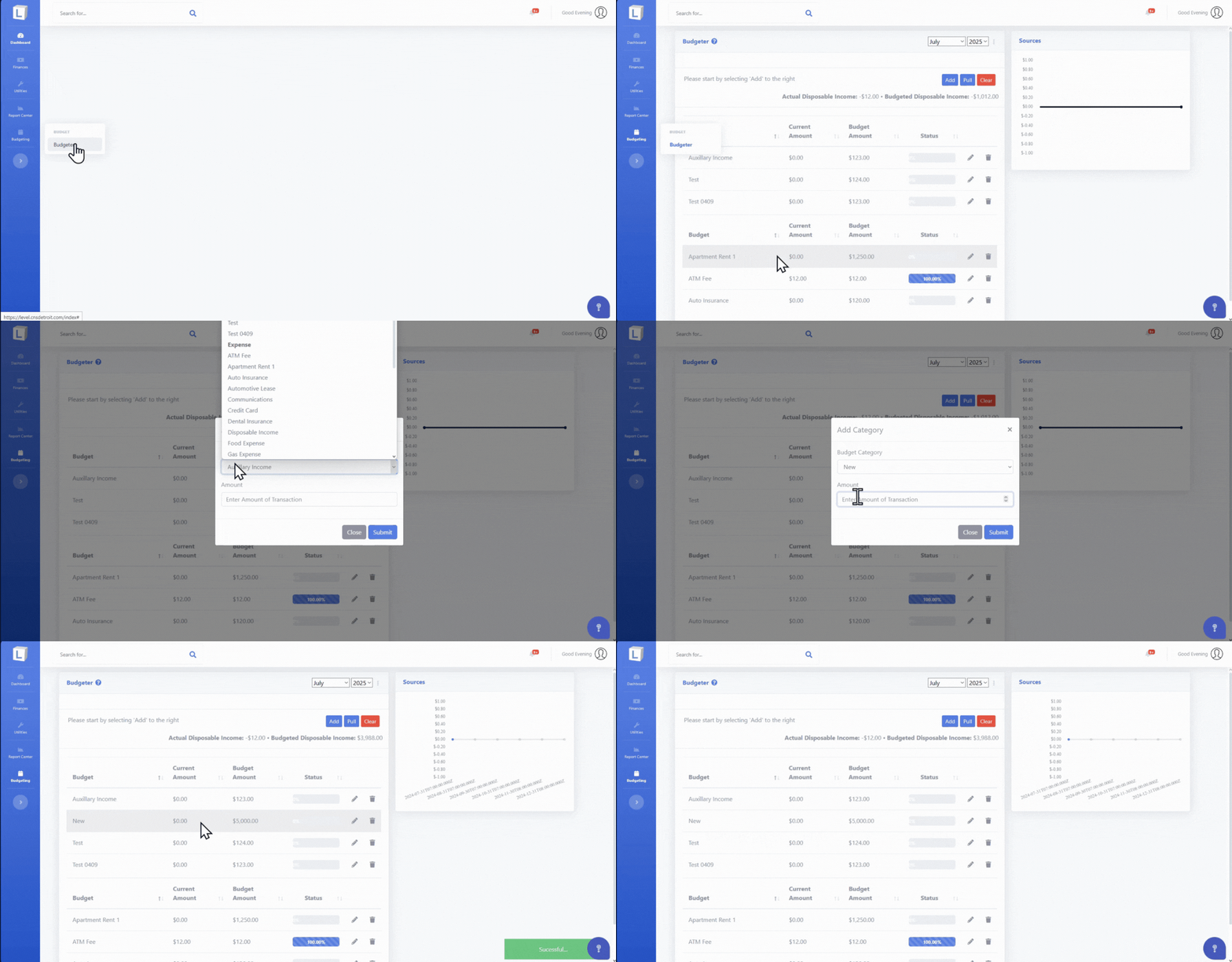
1. Select "Budgeting" tab on left menu sidebar.
2. Select "Budgeter" under the Budget category.
3. To start select the "Add Category" button.
4. On the pop-up menu, in the top dropdown box select the budget category item you want to add to either the "Income" or "Expense" categories.
Once all categories are put in; at the bottom of the Budgeter, you will see your "Budgeted Disposable Income" and "Actual Discposable Income."
Related Articles
Create Your First Transaction via Plaid
This article is to describe how to setup your first transactions via Plaid! 1. On the sidebar menu tab "Finances", click the "Transactions" page. 2. Click the "Upload Transactions" button in the top right. 3. Then click the "Enable Automatic Feed" ...Welcome to Zero Based Budgeting!
Welcome to Level! Level's philosophy to managing your money starts with Zero-Based Budgeting. This method will allow you to reach your savings goals, save money or even pay off debt. What is Zero-Based Budgeting? The Zero-Based Budgeting method ...Zero-Based Budgeting for Beginners: A Practical Guide
Understanding Zero-Based Budgeting Fundamentals Zero-based budgeting is often misunderstood as complicated or restrictive, but it's actually one of the most empowering financial approaches available. At its core, zero-based budgeting follows a simple ...Add Budget Categories
This article will describe how to add a new budget category. Please note: to delete a category, a ticket must be placed. Expand the "Utilities" Category in the left side panel. Click "Categories" Once on the page of table of budget categories, click ...Understanding Your Budget
On your budgeter, you will select "Income" categories to be tracked. Then select the "Expense" categories to be tracked. Once you've entered the income and expense categories you are budgeting for in the selected month, you will notice 2 totals at ...